
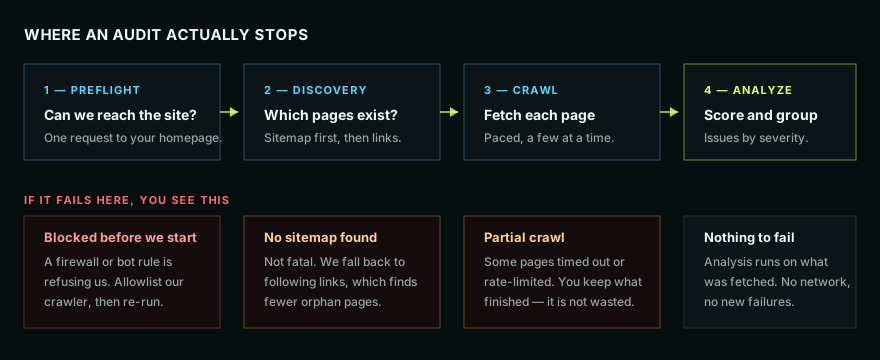
An audit runs in four stages. Knowing which stage you are in tells you what a failure actually means, and most "the audit is broken" messages turn out to be one specific, fixable stage.
What Site Audit is for
Site Audit is the technical health workflow for a project. It answers four practical questions:
- Can Page Optimized reach the site?
- Which URLs can a crawler discover?
- What did each page return when crawled?
- Which technical issues should become real work?
It is not meant to be a giant export that somebody has to clean. The useful output is the prioritized list of issues, affected URLs, page evidence, crawl history, and next actions.
Stage 1 - Preflight
One request to your homepage, to answer: can we reach this site at all?
This is cheap on purpose. Finding out that a firewall will refuse us costs one request rather than five thousand.
If it fails: something is refusing us: a firewall, a bot rule, a host-level security rule, a bad redirect, a DNS problem, or a server that only answers browsers. Nothing else can run until that is fixed.
What to check:
- The homepage loads in a private browser window.
httpsandwwwresolve to the right canonical host.- The server does not challenge unknown crawlers.
- The project URL is the production site, not a staging URL behind a password.
Stage 2 - Discovery
We work out which pages exist. Sitemap first, because it is authoritative and fast. If there is no usable sitemap, we follow links from the homepage instead.
If it fails: not fatal. A missing sitemap is a warning, not an error. Link-following finds slightly less - specifically orphan pages, which nothing links to, which is itself worth knowing.
What this provides:
- Sitemap URLs found.
- Linked URLs discovered from crawled pages.
- URLs skipped because they are external, blocked, duplicate, unsupported, or outside the project scope.
- A reason when the crawl found fewer pages than expected.
Stage 3 - Crawl
We fetch each discovered page, a few at a time, deliberately paced. Crawling politely takes longer than hammering a server, and hammering a server is how you get blocked mid-run.
If it fails partially: you keep everything that finished. A crawl that got 380 of 500 pages gives you a report on 380 pages, marked as partial. It is not thrown away and it does not cost you the run.
What this provides:
- Status code and final URL after redirects.
- Title, description, canonical, robots directives, headings, word count, links, and structured data when available.
- Internal and external link signals.
- Render risk when the raw HTML looks like an empty JavaScript shell.
- Lighthouse or rendered-page signals when that run included rendering.
Stage 4 - Analyze
Scoring and grouping. No network calls, so nothing new can fail here.
What this provides:
- Issue groups by severity.
- Affected URL lists for each issue.
- Page-level evidence.
- Historical comparison against earlier runs when available.
- Work that can feed Insights, Work Queue, reports, and Xavier.
What each Site Audit view gives you
Overview. The fast read: crawl status, pages crawled, issue counts, trend, and whether the report is complete or partial.
Issues. The main working view. Start here when deciding what to fix. Issues are grouped by type and severity so one template problem does not look like hundreds of unrelated problems.
Pages. The URL inventory. Use it when you need to inspect a page's status code, title, canonical, indexability, word count, internal links, or crawl path.
Links. The internal-link and broken-link evidence. Use it when a broken URL appears across many pages, or when an important page has weak internal support.
Sitemap. The sitemap truth check. Use it to see what the site claims exists, what was removed, what redirects, and what is not discoverable.
Performance and rendering. The page-speed, rendered HTML, and JavaScript risk layer. Use it when the technical problem depends on what a browser sees rather than what plain HTML contains.
History. The proof view. Use it in client calls to show issues fixed, issues introduced since the last run, and recurring problems that need engineering ownership.
What to do after a run finishes
- Open Issues and read the critical group first.
- Open the top issue and inspect the affected URLs.
- Check whether the issue is a repeated template problem or a one-off page problem.
- Weight the issue by traffic, page type, and business value.
- Send the issue to Work Queue or a content task when somebody needs to own it.
- Re-run after fixes ship, then use History to prove the change.
Why your audit found fewer pages than your site has
In rough order of likelihood:
- You set a page limit. Check the limit you chose when starting the run.
- Discovery could not see them. No sitemap, and nothing on the site links to them.
- They were blocked by
robots.txtor anoindexrule - which is a finding, not a failure. - The crawl was cut short by rate limiting or timeouts. The report says so when this happens.
Credit and cap behavior
Site audits use the plan's monthly crawl-page cap rather than normal credits for ordinary crawl pages. Fresh rendered checks or other data-heavy add-ons can use credits, and the app shows the cost before running them. Reopening a saved audit, filtering a table, exporting a report, or reading the same issue again costs 0 credits.
The practical rule: use small audits to validate access, use larger audits when you need full coverage, and use saved history instead of re-running just because you want to look again.
Running one well
- First run on a new site: keep it small. A few hundred pages proves we can reach you.
- Then raise the limit. Once one run succeeds, the rest usually do.
- Do not re-run on failure without changing something. If a firewall refused us, it will refuse us again.
- Fix by pattern, not by row. One bad template can create 600 missing-title findings. Assign the template fix once.
- Connect Search Console. Traffic context separates annoying warnings from issues on pages that make money.
Next
- My site audit failed or only crawled a few pages
- Reading your site audit results